Connect HubSpot to Mojo
Connect HubSpot and Mojo can answer questions about your contacts, companies, deals, and campaigns, and make changes in HubSpot when you ask. You decide how much access Mojo gets.
This guide covers what Mojo can do in HubSpot, which permissions to allow, how to connect, and how to disconnect. You can also find Mojo on the HubSpot App Marketplace.
What Mojo can do with HubSpot
- Answer questions about your contacts, companies, deals, and record owners.
- Report on campaign performance and revenue attribution, marketing email performance, and how your landing pages, website pages, and blog posts are doing.
- Create and update contacts, companies, and deals, link records to each other, and log calls, meetings, notes, and tasks.
- Create and update marketing campaigns, and add or remove the assets in them.
Try asking
- Marketing: "Which HubSpot campaign drove the most revenue last quarter?" or "How did last month's HubSpot newsletters perform?"
- Marketing ops: "How many HubSpot contacts became MQLs this month, by source?" or "Find HubSpot contacts at Acme with no owner."
- Sales: "Summarize my open HubSpot deals closing this quarter, by stage." or "Log a note on the Acme deal: we sent the proposal today."
What Mojo can access
| HubSpot data | Read | Create | Update |
|---|---|---|---|
| Contacts, companies, and deals | Yes | Yes | Yes |
| Calls, meetings, notes, and tasks | Yes | Yes | Yes |
| Links between records (associations) | Yes | Yes | — |
| Record owners, users, and properties | Yes | — | — |
| Marketing campaigns Marketing Hub Pro+ | Yes | Yes | Yes |
| Campaign assets Marketing Hub Pro+ | Yes | Add to a campaign | Remove from a campaign |
| Campaign performance and revenue attribution Marketing Hub Pro+ | Yes | — | — |
| Marketing email performance | Yes | — | — |
| Landing page, website page, and blog post performance | Yes | — | — |
Good to know
- Mojo connects through HubSpot's own MCP server. HubSpot decides what Mojo can see, based on the permissions you allow and your own HubSpot user permissions.
- Mojo never deletes, archives, or merges HubSpot records. Removing an asset from a campaign leaves the asset itself in place.
- If your HubSpot account has Sensitive Data turned on, HubSpot doesn't share calls, emails, meetings, notes, or tasks with connected AI tools, Mojo included.
Not available yet
- Deleting, archiving, or merging records.
- Tickets, line items, quotes, products, and other commerce data.
- Forms and form submissions.
- Building marketing emails, landing pages, blog posts, or workflows in HubSpot. Mojo can draft the content for you to build there.
Before you start
You'll need:
- A Mojo account. Get Mojo if you don't have one yet.
- A HubSpot user who can connect apps. Super Admins and users with App Marketplace Access can connect Mojo right away. Anyone else needs a Super Admin to approve Mojo first. See Approve Mojo for your team.
- Marketing Hub Professional or Enterprise, for campaign features only. Campaign performance, revenue attribution, and creating or editing campaigns need it. Everything else works on any HubSpot plan.
Your HubSpot user permissions still apply. Mojo sees only what your HubSpot user can see, and HubSpot's usual API limits apply.
Choose what Mojo can do in HubSpot
When you connect, HubSpot lists the permissions Mojo asks for and lets you pick which ones to allow. Feel free to allow only what you're comfortable with. You can start read-only and add more later, and if something needs access you haven't allowed, Mojo will tell you what's missing.
| Access | What it lets Mojo do | Without it |
|---|---|---|
| Contacts and companies (read) Required | Look up contacts and companies, and answer questions about them. | Mojo can't connect to HubSpot. |
| Deals and owners (read) | Report on your pipeline and deals, and see who owns each record. | Mojo can't see deals or record owners. |
| Contacts, companies, and deals (edit) | Create and update records, link records to each other, and log calls, meetings, notes, and tasks. | Mojo still reads and reports. You make changes yourself in HubSpot. |
| Campaigns and campaign revenue (read) Marketing Hub Pro+ | Read campaigns and their assets, and report on campaign performance and revenue attribution. | Mojo can't report on campaigns. |
| Campaigns (edit) Marketing Hub Pro+ | Create and update campaigns, and add or remove campaign assets. | You manage campaigns yourself in HubSpot. |
| Marketing events, content, and users (read) | Report on marketing events, marketing emails, landing pages, website pages, and blog posts, and see the users on your team. | Mojo can't report on your content or events. |
| Forms | Not used yet. | Nothing changes today. You can leave it off. |
Which permissions should I allow?
- Mojo reads and reports: allow the read permissions only.
- Mojo also updates records and logs activities: add Contacts, companies, and deals (edit).
- Mojo also manages campaigns: add Campaigns (edit).
Your Super Admin may have already limited which permissions you can allow. If they open up more later, reconnect to pick them up. See Manage the connection.
Connect HubSpot
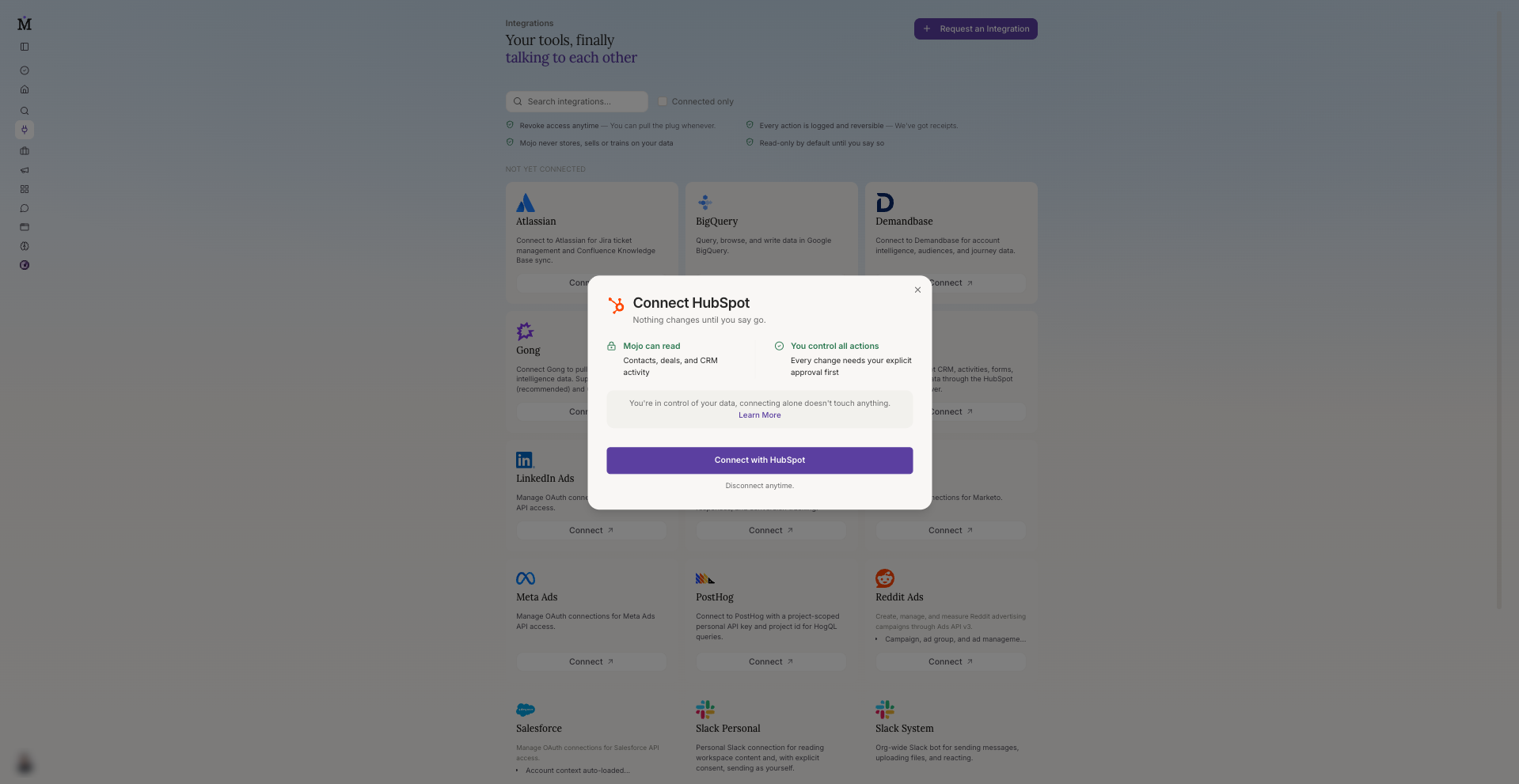
- In Mojo, open Integrations in the left sidebar, find HubSpot, and click Connect.
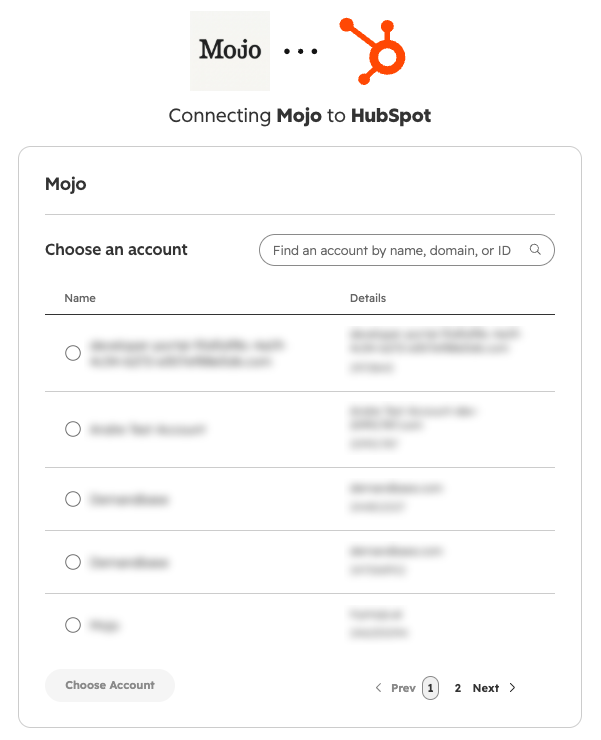
- Sign in to HubSpot if asked, then choose the HubSpot account you want Mojo to work in.
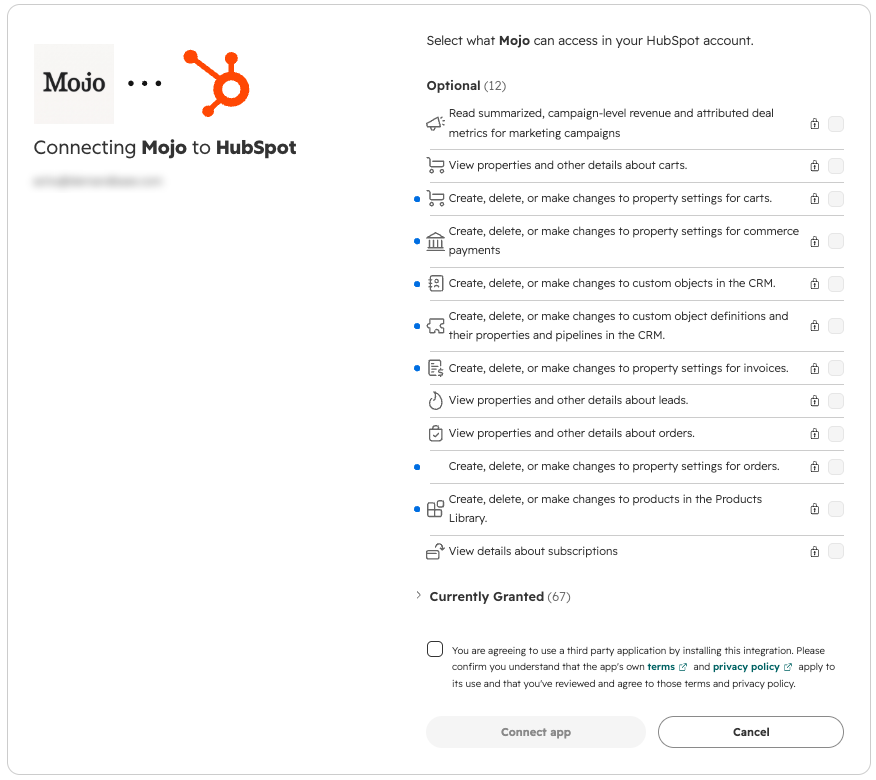
- HubSpot shows the permissions Mojo is asking for. Choose the ones you want to allow (see the table above).
- Click Connect app. You're back in Mojo, and HubSpot shows as Connected.
Approve Mojo for your team (Super Admins)
If HubSpot says you need approval, a Super Admin has to approve Mojo first. While approving, the Super Admin chooses which permissions Mojo can use and who can connect it. Once Mojo is approved, go back to step 1. HubSpot explains the approval steps in Manage your connected apps.
Check that it's working
Let Mojo do it. In Mojo chat, ask: "What can you access in my HubSpot account?" Mojo lists what it can read and change with the permissions you allowed.
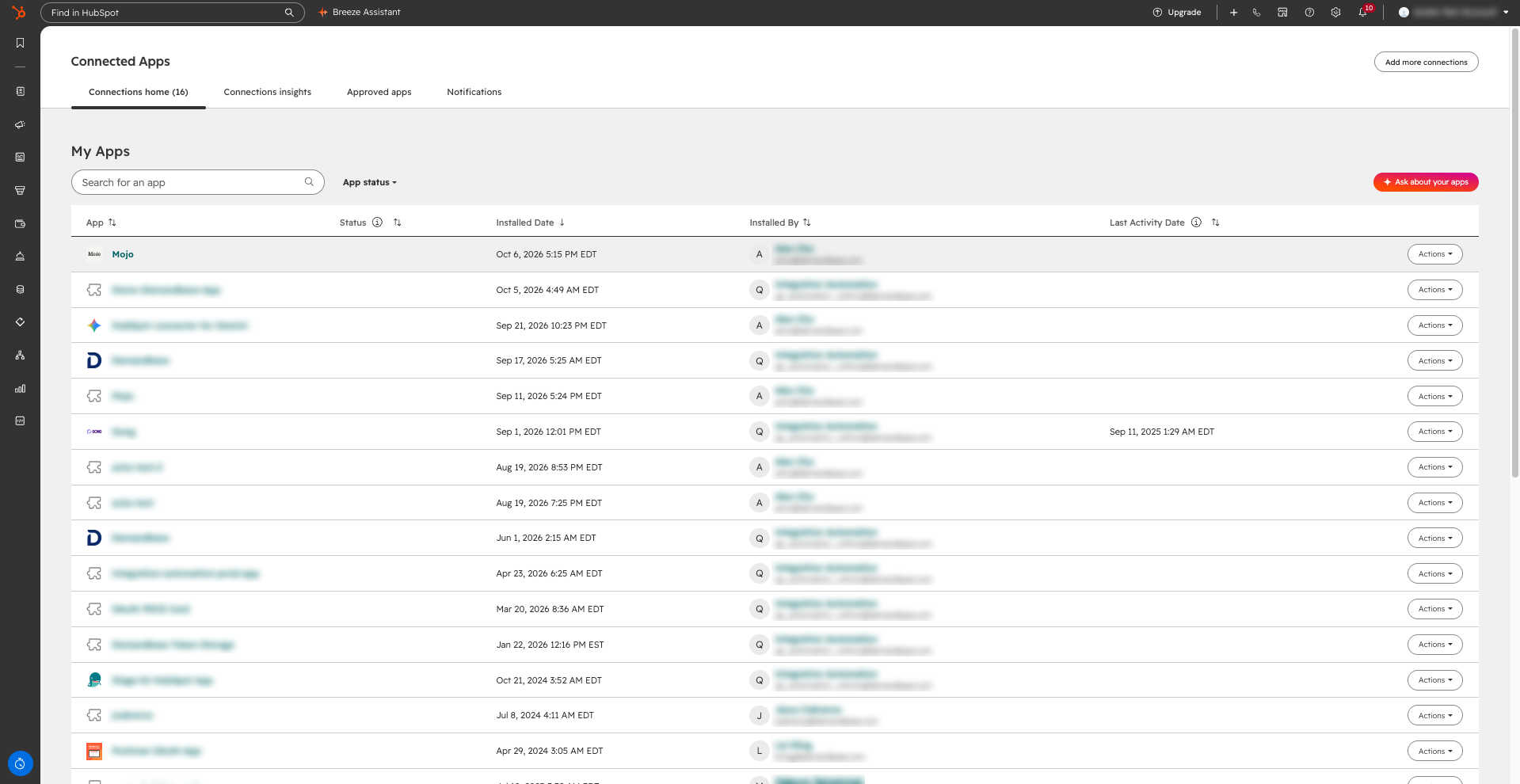
Check it yourself. In HubSpot, click the settings icon, then Integrations → Connected Apps. Mojo is listed under My apps. Open it to see the permissions you allowed.
Use HubSpot with Mojo
Once HubSpot is connected, you can use it anywhere in Mojo: in chat, in Skills, and in Routines and Workflows that run on a schedule.
You decide when Mojo asks first
Mojo treats every HubSpot change as a higher-risk action, so the write mode you pick in the chat composer decides what happens:
- Read Only: Mojo reads and reports, and doesn't change anything in HubSpot.
- Guarded (the default): Mojo shows you the change and waits for your approval before it touches HubSpot.
- Trusted or Autonomous: Mojo makes HubSpot changes without asking.
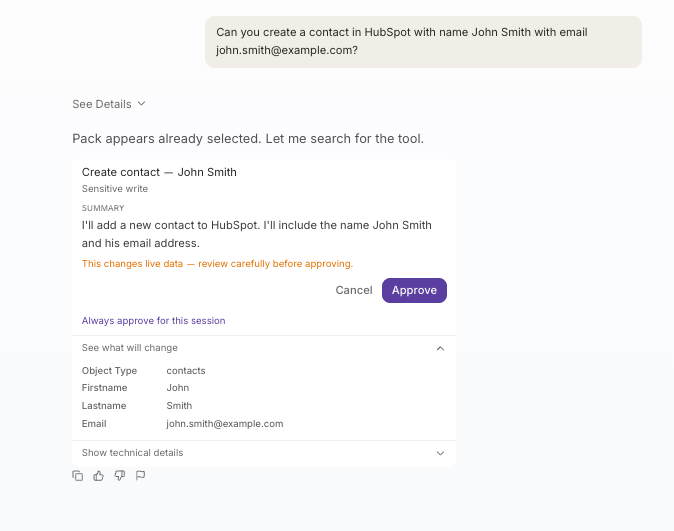
Try a first change
Start with something small, like "Log a note on the Acme deal in HubSpot saying we sent the proposal today." Check the result in HubSpot before you ask for bulk changes.
Bulk changes
Mojo can change up to 100 records (or 50 campaigns) in one request. It works through them one at a time. If one fails, Mojo stops and tells you which records changed and which didn't, so nothing is half-done without you knowing.
Tips for better answers
- Say "HubSpot" in your request, so Mojo knows where to look.
- Try one record before a bulk change.
- Read the approval card before you approve.
- For page or blog performance, name the campaign and the date range. Only published pages and posts have performance data.
- Cleaner HubSpot data gives better answers, but it doesn't have to be perfect.
Manage the connection
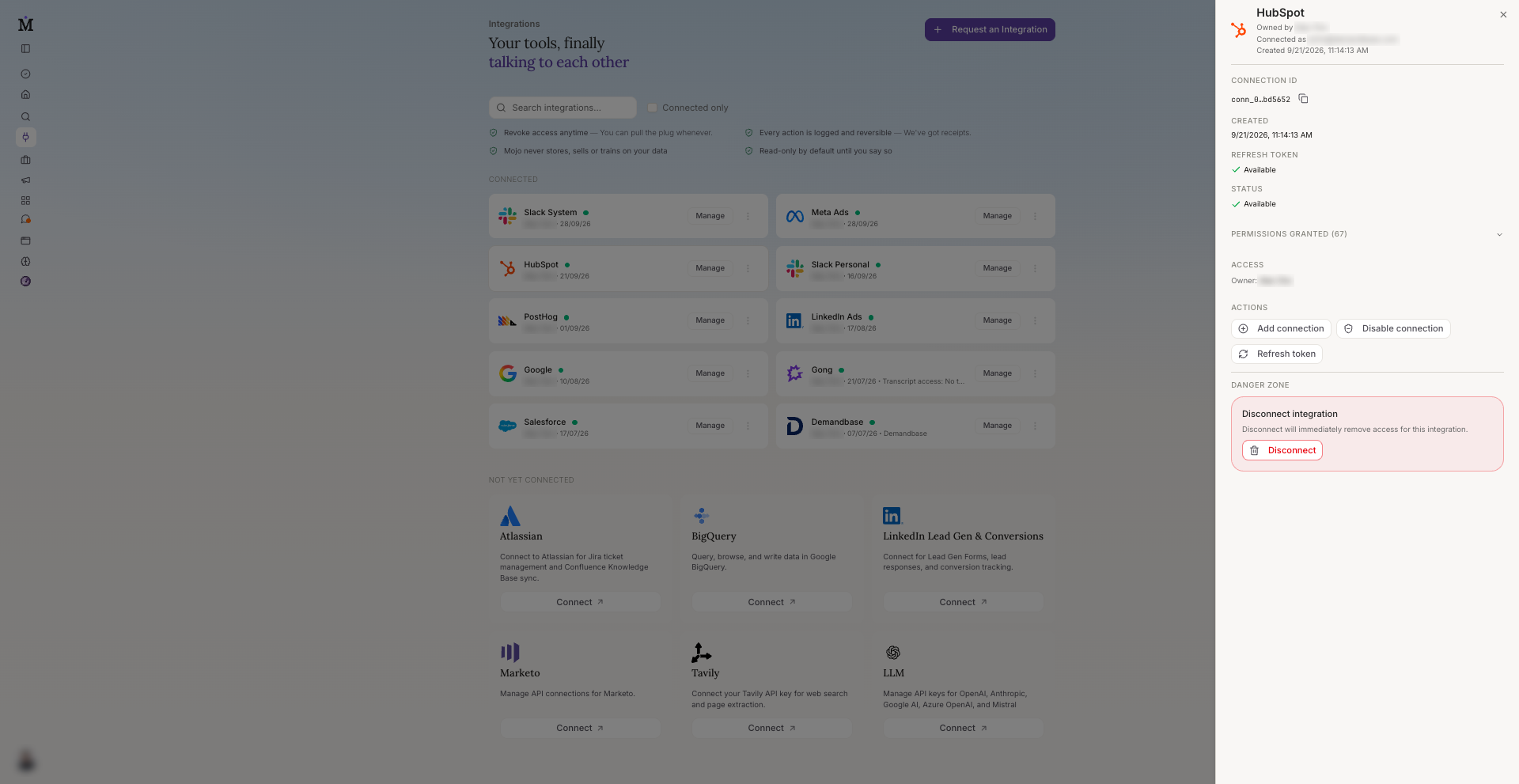
Open Integrations and click your HubSpot connection to see its details.
- Change what Mojo can access. Click Add connection and choose your permissions again in HubSpot, or disconnect and connect again.
- Re-authenticate. This shows up when the connection has expired. Click it and sign in to HubSpot again.
- Disable connection. Pauses Mojo's access to HubSpot without removing the connection. Click Enable connection to turn it back on.
- Switch HubSpot accounts. Mojo works in one HubSpot account at a time. To use a different one, click Add connection and choose that account, or disconnect and connect again.
- Share with your team. You can share the connection with teammates. Shared access is read-only. See Connections & integrations.
Disconnect HubSpot
In Mojo
- Open Integrations and click your HubSpot connection.
- Under Danger zone, click Disconnect. Mojo loses access to HubSpot right away.
Don't see Disconnect? A Campaign in Mojo is using this connection. Replace or remove it in those Campaigns first. To pause Mojo's access instead, use Disable connection.
In HubSpot
Click the settings icon, then Integrations → Connected Apps. Open Mojo and disconnect or uninstall it. HubSpot covers the details in Manage your connected apps.
Disconnecting doesn't undo past changes. Anything Mojo created or updated stays in HubSpot.
Troubleshooting
HubSpot says the connection expired
Open the HubSpot connection on the Integrations page and click Re-authenticate.
HubSpot says I need approval to connect
Only Super Admins and users with App Marketplace Access can connect apps without approval. Ask a Super Admin to approve Mojo. See Approve Mojo for your team.
Mojo says it doesn't have access to something
That permission wasn't allowed when you connected, or your Super Admin hasn't approved it for Mojo. Reconnect and allow it (see Manage the connection), or ask your Super Admin.
Mojo can't see my campaigns
Campaigns need Marketing Hub Professional or Enterprise, and the Campaigns permissions. Check your HubSpot plan, then reconnect and allow campaign access.
Calls, emails, meetings, or notes are missing
Your HubSpot account probably has Sensitive Data turned on. When it is, HubSpot doesn't share these activities with connected AI tools.
Mojo is looking at the wrong HubSpot account
Mojo works in one HubSpot account at a time. Switch the connection to the account you want. See Manage the connection.
I can't find the Disconnect button
A Campaign in Mojo is using this connection. Replace or remove it in those Campaigns, then disconnect.
Something else
Paste the error or describe what happened in Mojo chat. Mojo can often tell you what's wrong on the spot.
FAQ
Using Mojo with HubSpot
Can Mojo change my HubSpot data? Yes, if you allow it. Mojo can create and update records, activities, and campaigns. In the default Guarded mode, it asks before every change. Mojo never deletes, archives, or merges records.
Can I use more than one HubSpot account? You can switch accounts at any time, but Mojo works in one HubSpot account at a time. See Manage the connection.
Will Mojo build emails, landing pages, or workflows in HubSpot? Not yet. Mojo can draft the content, and you build it in HubSpot.
Can Mojo make mistakes? Yes. Keep your HubSpot data current, review what Mojo returns, ask which HubSpot records it used, and keep approvals on for changes you want to check.
Data access
What can Mojo see? Only what you allowed when you connected, and only what your own HubSpot user can see. Team and record-level restrictions in HubSpot still apply.
Can Mojo see Sensitive Data properties? No. Mojo doesn't ask for access to Sensitive Data properties. If Sensitive Data is turned on in your account, HubSpot also withholds calls, emails, meetings, notes, and tasks.
Can agencies or consultants connect Mojo to our HubSpot account? Anyone with Super Admin or App Marketplace Access in your HubSpot account can connect Mojo. Super Admins can review connected apps in HubSpot.
Privacy and security
Can admins see what Mojo did in HubSpot? Yes. In HubSpot's Connected Apps settings, Super Admins can see which apps are connected and review the records an app created or updated. See Manage your connected apps.
Is my HubSpot data used to train AI models? No. Your data isn't used to train shared or third-party models. See Security.
Where is my HubSpot data processed? HubSpot routes requests through your HubSpot data center, so EU-hosted accounts stay on HubSpot's EU servers. For how Mojo handles data, see Security and our Privacy Notice.
Does HubSpot collect anything when Mojo uses it? Mojo connects through HubSpot's MCP server. HubSpot says it may collect anonymized summaries of requests made through that server to monitor and improve it.
Prev Doc
IntegrationsNext Doc
Troubleshooting & FAQYour team is too good to spend their week doing work Mojo can handle.
Join the beta. Connect your stack. Ask the question you've been meaning to ask.